Email on your domain
Forwarding, the inbox in the portal, sending with SMTP, writing mail, email security and DMARC reports.
Turn email on
- Open the domain's Email page. It shows the numbers of the last days and what is on.
- In "Email settings" add the addresses you want, such as info and sales, or * for every address.
- For each address choose: keep the mail in the inbox here, or forward it to mailboxes you already use. A destination mailbox confirms once with a link.
- Turn forwarding on: the MX and SPF records are set for you.
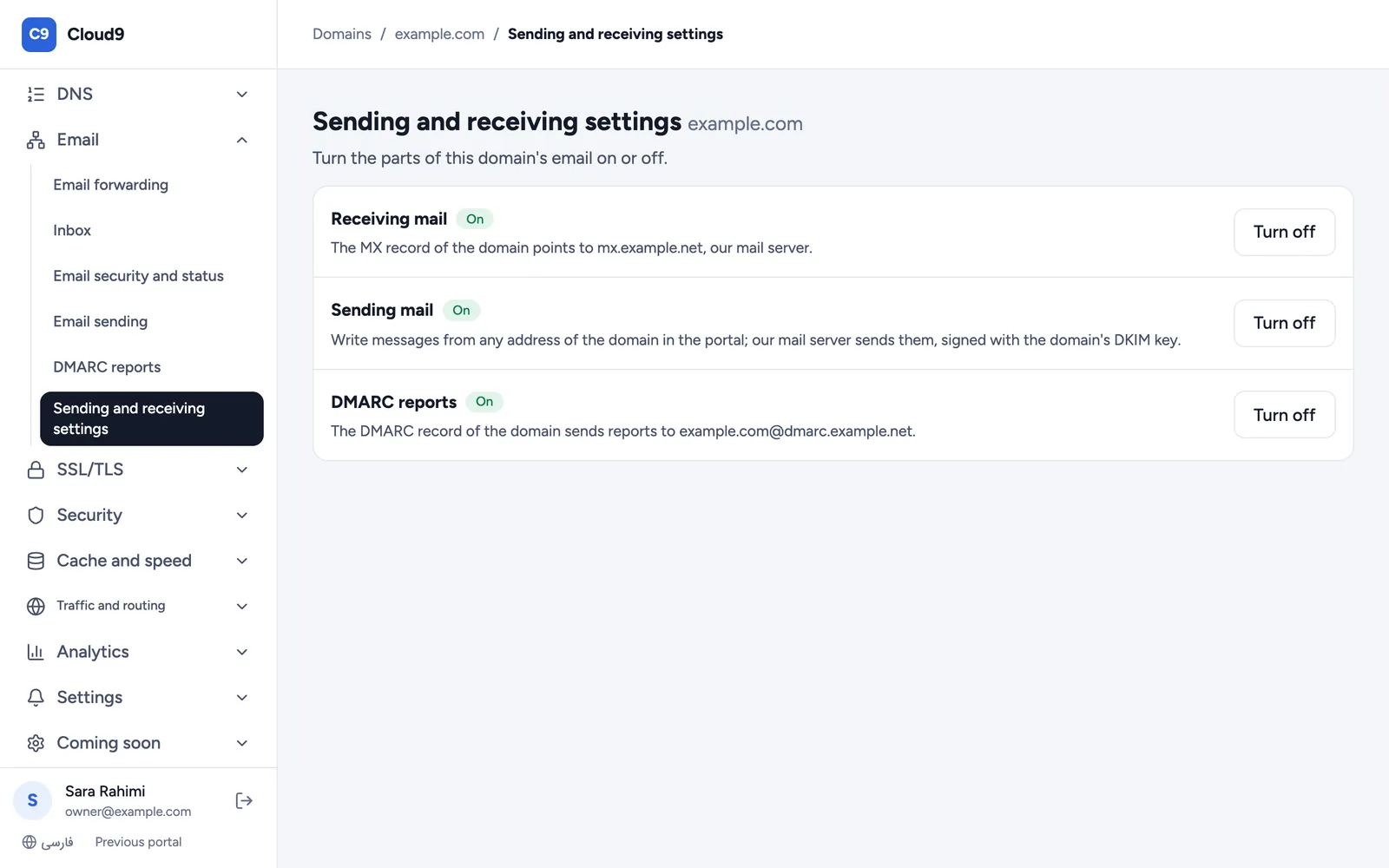
The inbox
Every received message is listed with what became of it: kept, forwarded, deferred, bounced or rejected. Open a message to read it and answer from the portal. The inbox keeps the 200 newest messages for 30 days, within the room of your plan.
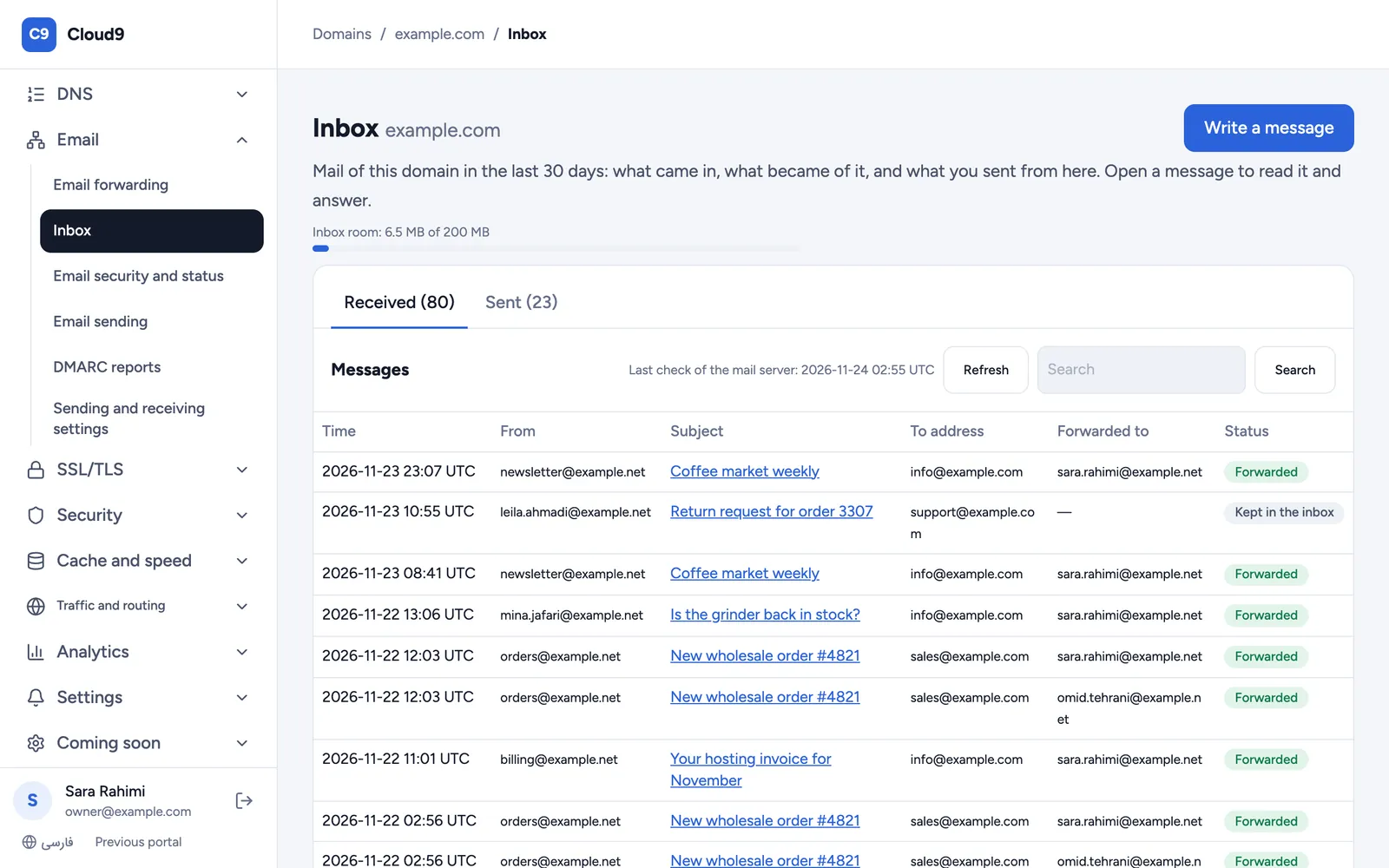
Sending
Turn sending on to get an SMTP user for the domain; DKIM is added for you. Use it in your site or your mail program; up to 100 messages an hour. In the portal you can also write mail to up to 20 recipients with attachments up to 50 MB.
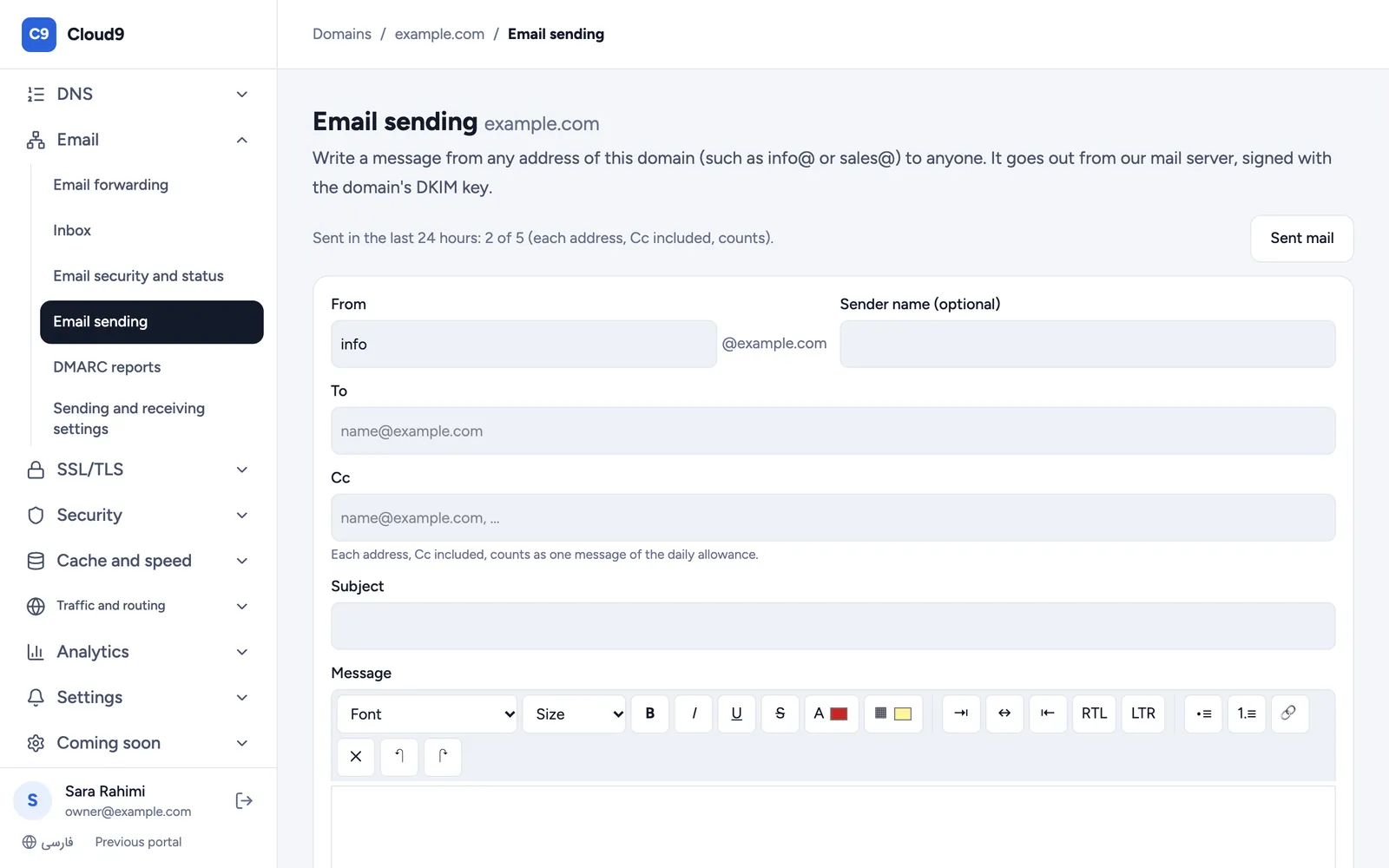
Email security
The email security page checks MX, SPF, DKIM and DMARC and explains each result. One click adds an SPF or a DMARC record, makes DMARC strict, or marks a domain that sends no mail.
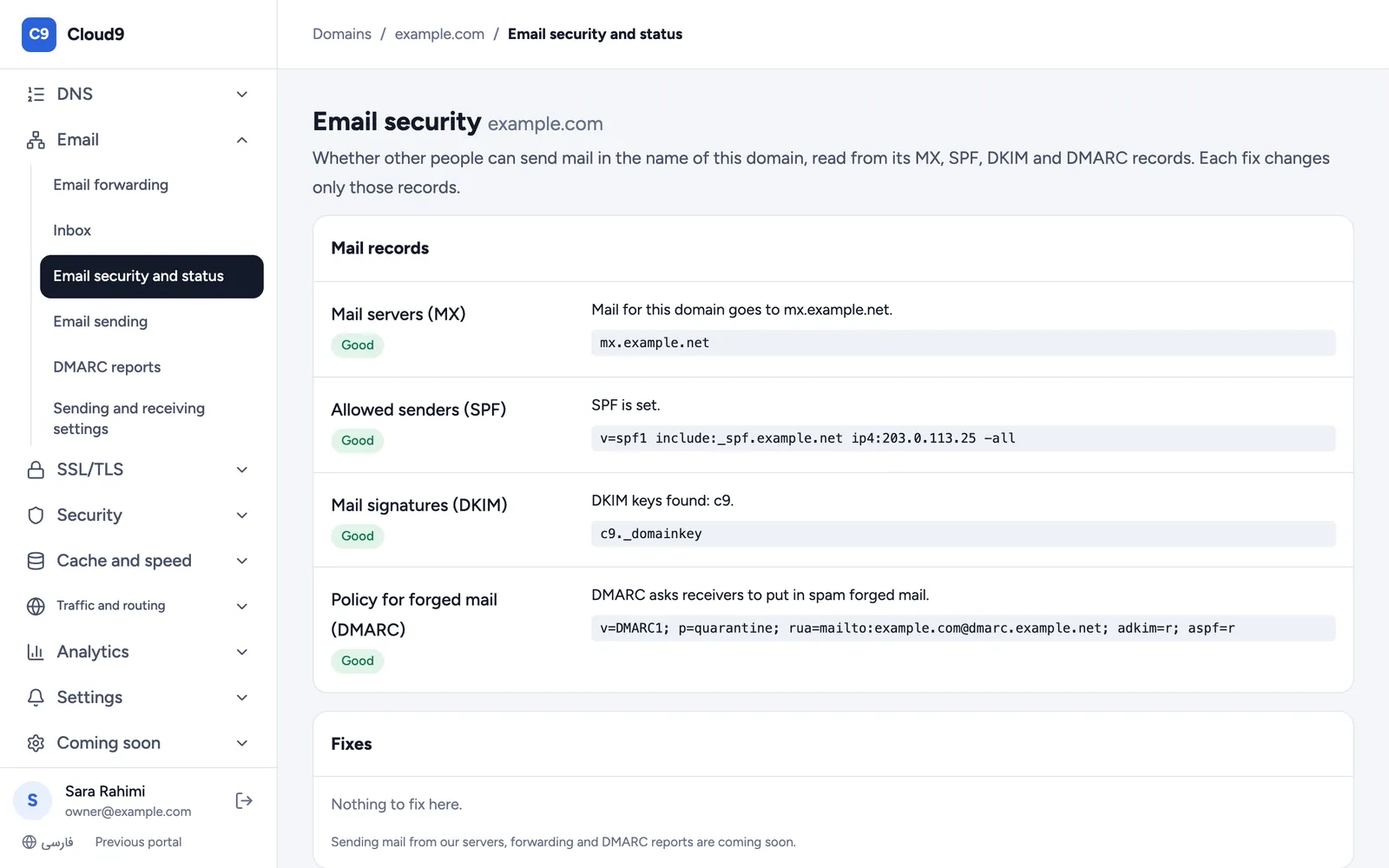
DMARC reports
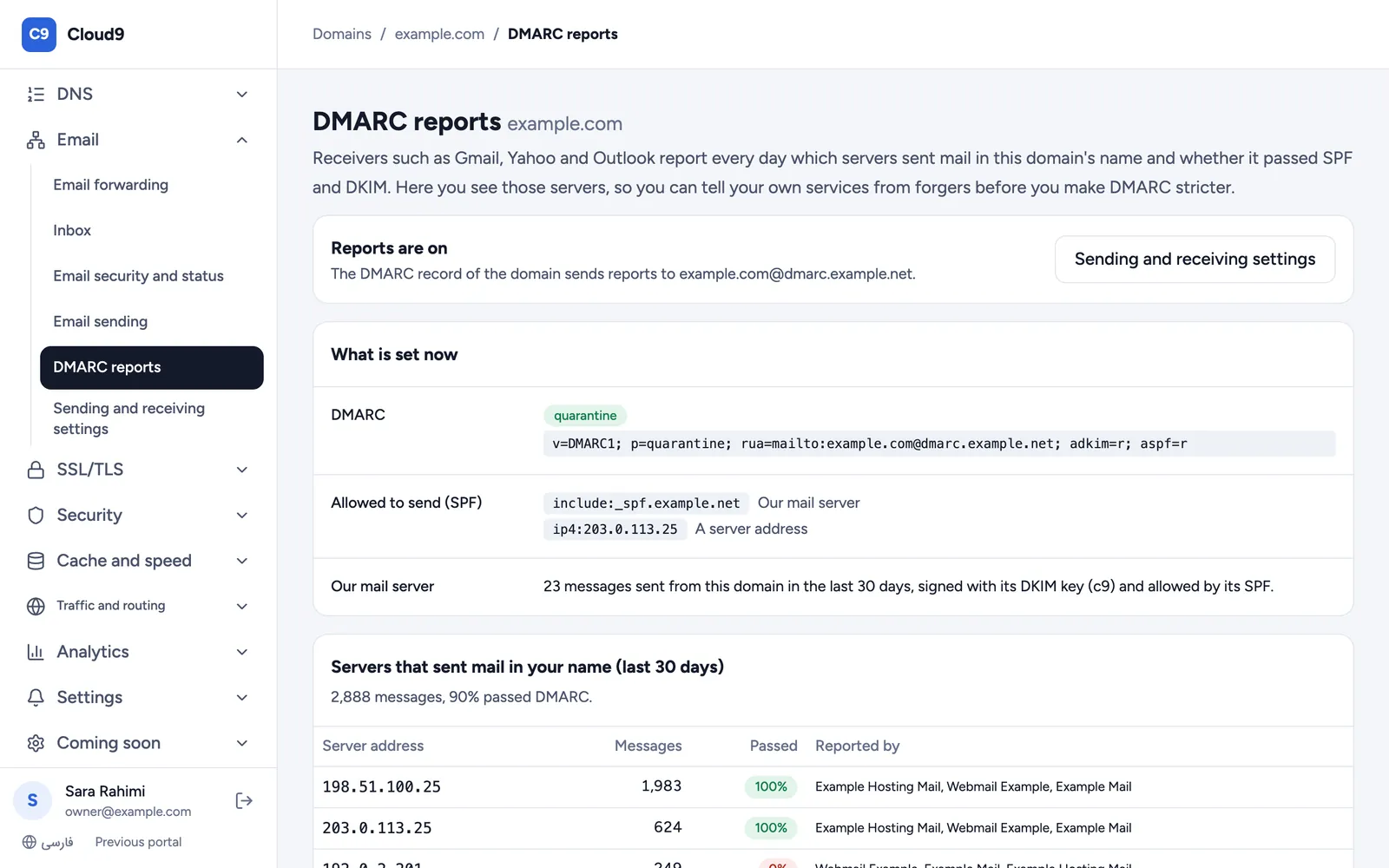
With DMARC reports on, the reports of receiving servers are collected and summarised per sending server for 90 days, so you see who sends mail in your domain's name and whether it passes.
Forwarded messages are not changed, so the sender's DKIM still holds, and SRS keeps them passing SPF at the destination.
No answer here? Sign in to the portal and open a ticket. Open a ticket